Tutorial for Adding a New Symbol, in LVGL
Jim Yuill, 12/25/25
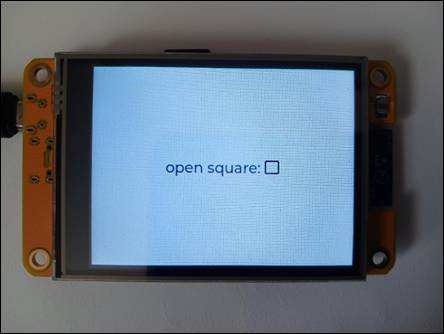
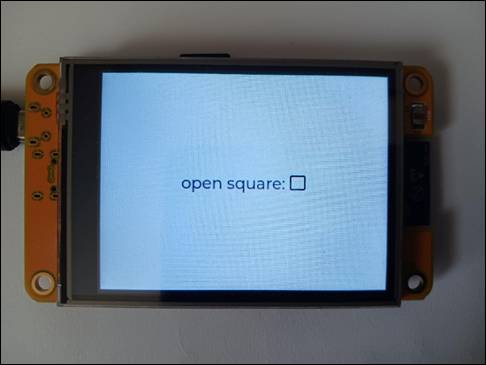
This document describes how to add a new symbol to LVGL. Specifically, it shows how to add an open-square symbol, like the one shown in the figure below. Other symbols can be added in a similar way.
The LVGL docs provide instructions for adding a symbol.
However, I'm new to LVGL, and following the instructions required additional
investigation. To help other newbies, I'm posting my investigation notes. I
added some prose to make the notes more readable.
I'm using LVGL v9.3, on an ESP32 Cheap Yellow Display (ESP32-2432S028R).
1 The LVGL docs
The LVGL docs describe how to add a symbol. There are two
webpages, shown below. The webpages list the steps involved.
The present document provides additional info for each step.
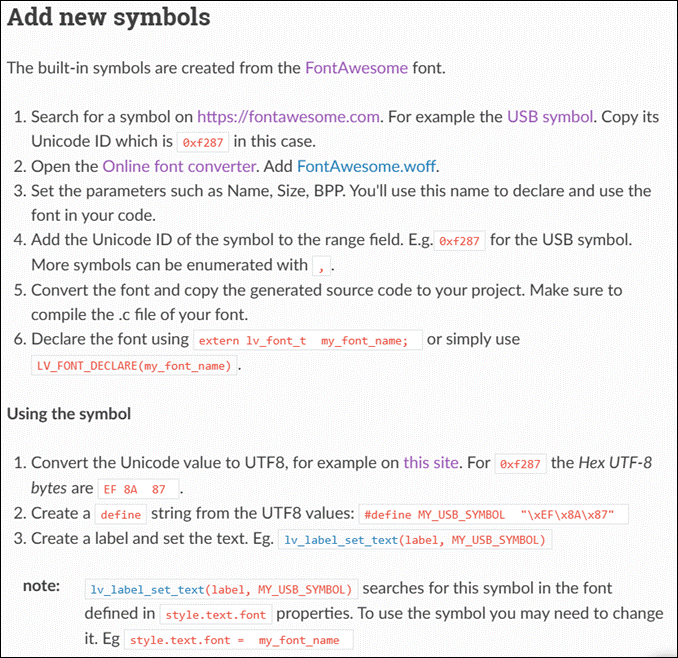
1.1 "Add new symbols"
https://docs.lvgl.io/9.0/overview/font.html#add-new-symbols
These are LVGL's main instructions for adding a new symbol.
1.2 Font Converter
https://lvgl.io/tools/fontconverter
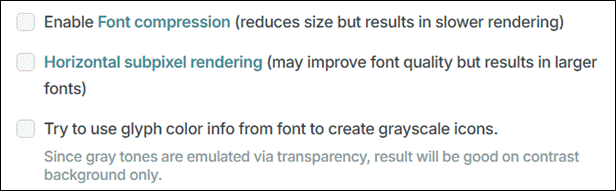
The Font Converter is an on-line tool that is used in creating a new symbol.
Overview:
The tool:
2 The enhanced instructions
The steps from "Add new symbols" are copied below.
They are in bold and highlighted in yellow.
For each step, additional information is provided.
Add new symbols : https://docs.lvgl.io/9.0/overview/font.html#add-new-symbols
The built-in symbols are created from the FontAwesome font.
● 1. Search for a symbol on https://fontawesome.com. For example the USB symbol. Copy its Unicode ID which is 0xf287 in this case.
o For this step, the objective is to find a FontAwesome symbol to use.
■ Symbols are defined in .woff files provided by FontAwesome
■ Among these thousands of symbols, we need to identify a specific one to use. For example, search the symbols listed on the FontAwesome website.
■ And we need to find a .woff file in which the symbol is defined.
■ As of 2021, LVGL uses FontAwesome v5
o The info below is on searching for a symbol on https://fontawesome.com
■ In the LVGL instructions, the next step (2) provides a link to a FontAwesome .woff file.
● The file is: FontAwesome5-Solid+Brands+Regular.woff
o We'll refer to it as "the provided .woff file"
● There are other FontAwesome .woff files that can be used. They are described later.
■ The provided .woff file is version 5.9.9
● So, if you're using symbols from the provided .woff file, we need to search for fonts in the FontAwesome version-5 collection. (I think this is true, not sure.)
● To search the FontAwesome version-5 collection:
o https://fontawesome.com/v5/search
o The info below explains the search results from https://fontawesome.com/v5/search
■ Select from among the free symbols (not the Pro symbols)
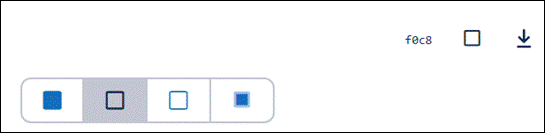
■ An example is shown inf the figure below. It's from a search for "square"
● The UNICODE value is specified as "f0c8"
● 4 squares are shown.
● The first square is the "Classic Solid" version and it's in the provided .woff file
o Identified by hovering the mouse over the symbol
● The second square is the "Classic Regular" version. It's not in the provided .woff file
o I needed this second square-- an open square, not a solid square
● The next step (2) describes finding .woff files, and finding symbols within a .woff file
● 2. Open the Online font converter. Add FontAwesome.woff.
o How to get the provided .woff file
■ On the webpage, the link to the .woff file does not work
■ The link is intended to go to the file: FontAwesome5-Solid+Brands+Regular.woff
■ That file can be obtained on LVGL's GitHub repo
● GitHub path:
o lvgl/lvgl/scripts/built_in_font/FontAwesome5-Solid+Brands+Regular.woff
o To see the symbols in a .woff file:
■ There are free online viewers for .woff files, which show the file's symbols
● Example: FontDrop https://fontdrop.info/#/
● Open the Glyphs tab. You can use Chrome's ctrl-f to search the webpage, e.g., for "square"
o I needed the "Classic Regular" version of the square (open square), shown above, and it's not in the provided .woff file
■ However, I found the open square in another .woff file from FontAwesome. This is described next.
o There are other FontAwesome .woff files, and they can be used instead. Apparently these files are free
o One place to find these .woff files is in the FontAwesome GitHub repo
■ GitHub path: FortAwesome/Font-Awesome/webfonts
■ https://github.com/FortAwesome/Font-Awesome/tree/5.x/webfonts
● This link is for FontAwesome version 5.x
● I used version 5 because the provided .woff file is version 5. I thought it would be more likely to work with the LVGL instructions and Font Converter.
● On GitHub, the FontAwesome version can be selected in the webpage's upper-left.
■ I need the "Classic Regular" square, so I downloaded the file: fa-regular-400.woff
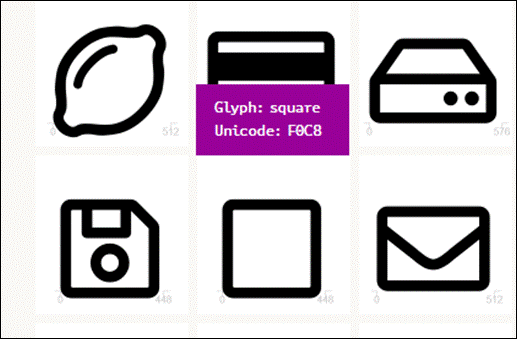
■ I uploaded that .woff file to FontDrop, and I found an open square. By hovering the mouse above the figure, the Unicode value is displayed: F0C8.
● Note, this is the Unicode value returned in the search I did earlier on the FontAwesome website.
o Another source of FontAwesome .woff files is:
■ https://github.com/h5p/font-awesome/tree/master
■ I've used: https://github.com/h5p/font-awesome/blob/master/fontawesome-webfont.woff
■ It's open-square was different than the open-square in fa-regular-400.woff
The following instructions are for the Font Converter. They are from the Font Converter webpage. They are highlighted in green.
● Font Converter: https://lvgl.io/tools/fontconverter
o The CLI version has additional info: https://github.com/lvgl/lv_font_conv
● The font converter will create a C-file. In this example, that file will have the code needed for using the open-square symbol in an LVGL label
● On the Font Converter webpage, the instructions describe how to:
o Create the C-file that defines the open-square symbol
o Use the symbol in a C program-file.
■ In the present file, example code is shown for using the open-square symbol in an LVGL label.
● I'm using the Arduino IDE, so I put that C-file in the directory for my Arduino sketch
o The IDE's build-system will compile and link that file, for the sketch
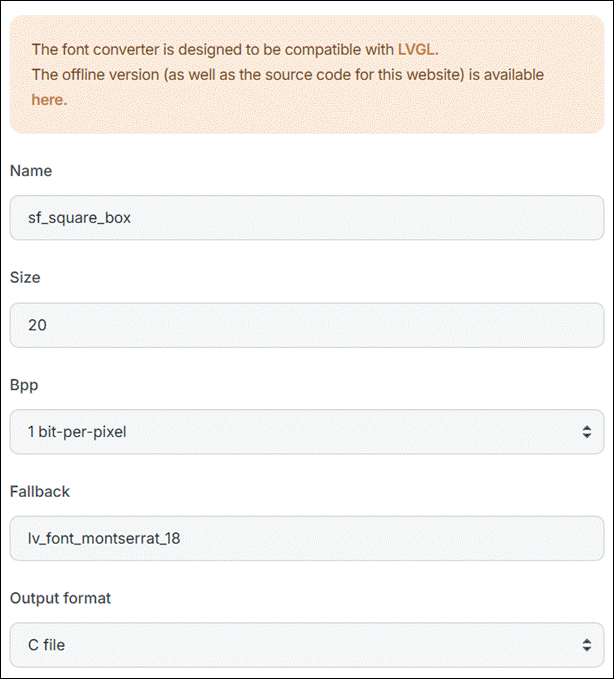
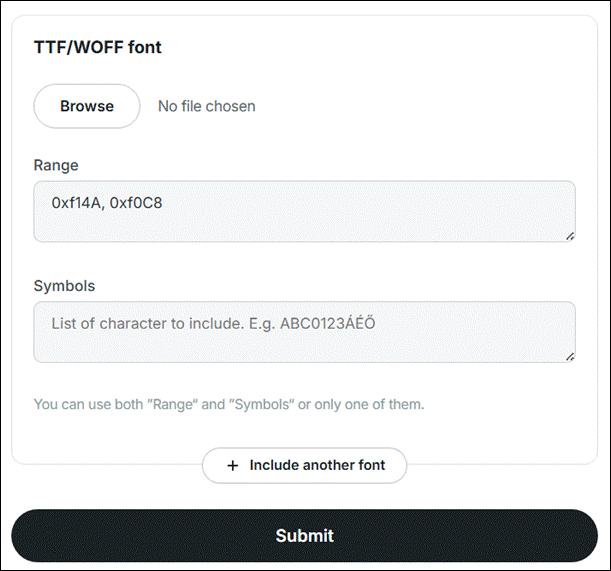
● Set the parameters such as Name, Size, BPP. You'll use this name to declare and use the font in your code.
o For the Font Converter's first section, the parameters are listed here, and further explained.
o Name: the created C-file will have this name, with .c appended
■ I entered the name: sf_square_box
■ So, the created C-file is: sf_square_box.c
■ This name is also used within the C-file. A struct is defined of type lv_font_t, and it has the same name as the C-file (without the .c suffix). This struct will be referenced in using the symbol, in a label. Example code is shown later.
o Size: I think this is the pixel height for the symbol (open square)
■ I entered size: 20
■ I think this size needs to be greater than, or equal to, the height of the "Fallback" font
● If this size is less than the height of "Fallback" font, I think only the bottom part of that font is shown.
● For example, I mistakenly used Size 20 and the "Fallback" font: lv_font_montserrat_24. On the display, the characters shown with that font were truncated in height.
o Bpp: bpp is "bits-per-pixel"
■ I used the default, "1 bit-per-pixel"
■ I don't know about this parameter
o Fallback: I'm guessing that this specifies the font to use, by default.
■ That is, it's the font used for characters that are not specified by the created C-file.
■ I used: lv_font_montserrat_18
● 18 is an appropriate size for my display
● I have the impression that lv_font_montserrat is a common default font for LVGL
o Output format: I used "C file"
o 3 check boxes: I left these boxes un-checked.
● Add the Unicode ID of the symbol to the range field. E.g.0xf287 for the USB symbol. More symbols can be enumerated with ,.
o For the Font Converter's second section, the parameters are listed here, and explained.
o TFF/WOFF font: Browse
■ Click to select the .woff file to use.
■ I used fa-regular-400.woff, as described earlier.
■ Ensure the file is loaded. In my experience, this may take several tries.
o Range: "You can select ranges of Unicode characters"
■ I entered the Unicode value for the open square: 0xf0C8
■ It's possible to enter more than Unicode value, e.g., separated by commas: 0xf0c8, 0xf14a
o Symbols: I didn't use this parameter
● Convert the font and copy the generated source code to your project. Make sure to compile the .c file of your font.
o Submit: Generates the C-file, e.g., sf_square_box.c
o Using the C-file in an Arduino sketch-directory was described earlier.
● Declare the font using extern lv_font_t my_font_name; or simply use LV_FONT_DECLARE(my_font_name).
o I used the open-square symbol in a label. That code is in a C-file within the sketch directory.
■ In my case, the C-file's name is: select_file.cpp
o In select_file.cpp, the extern statement I used is:
extern lv_font_t sf_square_box;
The following instructions are from the second part of "Add new symbols". The instructions are highlighted in yellow.
Using the symbol
● Convert the Unicode value to UTF8, for example on this site. For 0xf287 the Hex UTF-8 bytes are EF 8A 87.
o Use the link provided at "this site"
o For the open square (0xf0c8), the UTF-8 bytes are: EF 83 88
● Create a define string from the UTF8 values: #define MY_USB_SYMBOL "\xEF\x8A\x87"
o The statement I used is:
#define SF_OPEN_SQUARE_SYMBOL "\xEF\x83\x88"
● Create a label and set the text. Eg. lv_label_set_text(label, MY_USB_SYMBOL)
note: lv_label_set_text(label, MY_USB_SYMBOL) searches for this symbol in the font defined in style.text.font properties. To use the symbol you may need to change it. Eg style.text.font = my_font_name
o For a label, one way to change the style is with the API: lv_obj_set_style_text_font()
■ lv_obj_set_style_text_font() : sets the font for an object
■ lv_style_set_text_font() : sets the font for a style
o The following code creates a label, and it uses the open-square symbol.
o It just shows the symbol, and no text.
lv_obj_t * test_label = lv_label_create(lv_screen_active());
lv_label_set_text(test_label, SF_OPEN_SQUARE_SYMBOL);
lv_obj_set_style_text_font((lv_obj_t*) test_label, &sf_square_box, 0);
lv_obj_align(test_label, LV_ALIGN_CENTER, 0, 0);
o There's an alternative way to specify the symbol in the label's text. It uses the Unicode value for the symbol, instead of using SF_OPEN_SQUARE_SYMBOL. The output is shown in the figure.
lv_label_set_text(test_label, "unfilled sq: \uF0c8 ");
3 References
3.1 Webpages cited in the tutorial
● LVGL : Add new symbols
o https://docs.lvgl.io/9.0/overview/font.html#add-new-symbols
● LVGL : Font Converter
o On-line
■ https://lvgl.io/tools/fontconverter
o CLI tool, has more options and info
■ https://github.com/lvgl/lv_font_conv
● Font Awesome : v5 search
o https://fontawesome.com/v5/search?q=square
● GitHub .woff files
o lvgl/scripts/built_in_font/FontAwesome5-Solid+Brands+Regular.woff at release/v9.3
o https://github.com/FortAwesome/Font-Awesome/tree/5.x/webfonts
■ Use v5 fonts
o https://github.com/h5p/font-awesome/tree/master
● FontDrop : view symbols in .woff file
● UTF-8 Tool : convert Unicode to UTF-8
o https://www.cogsci.ed.ac.uk/~richard/utf-8.cgi?input=f14a&mode=hex
3.2 Additional info
● Other tutorials on adding symbols and using them
o Configure LVGL Fonts-Developer Guide-Tuya Developer
■ https://developer.tuya.com/en/docs/developer/lvgl-font?id=Kewg0weilgflz
■ "... use lv_obj_set_style_text_font() to set the font for an LVGL object, or use lv_style_set_text_font() to set the font for a style."
● Unicode values for LVGL's built-in symbols
o https://esphome.io/components/lvgl/
o The Unicode value can be specified in the label text, e.g., "This is the check symbol: \uF00C."
o Search the webpage for:
■ You can display the embedded symbols among the text by their codepoint address preceded by \u. For example: \uF00C
● LVGL's default font size, from Google AI:
o LVGL's default font size, when using its built-in Montserrat fonts and if not specified otherwise, is typically 14 pixels (px), often referenced as montserrat_14. LVGL provides several predefined fonts like montserrat_12, montserrat_16, montserrat_20, etc., but 14px serves as a common default for general text if no specific size is set in your styles.
------------------------------------------------------------------------
Copyright 2025, by Jim Yuill, under the terms of CC BY 4.0.